Showing posts with label GOOGLE. Show all posts
Showing posts with label GOOGLE. Show all posts
Wednesday, 2 December 2015


Monday, 18 February 2013
Google Gravity : Awesome Breakdown of Google Search
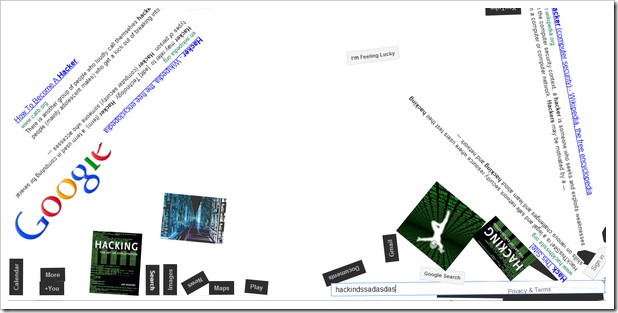
Hello everyone and today I am going to show you an awesome Google Gravity trick with which you can Breakdown every elements of the
search engine than search and see everything falling and scramble as you click and drag parts here and there so check below how this trick works.
- Open Google.com, type
Google Gravity& click on I’m Feeling Lucky. - Or you can simply click on this link for direct access to that page.
- Now see the magic hover the mouse and see every thing goes and down as gravity drags it down see the below screenshot.
- Now the best thing is that you can even search and the results will go down as same as everything went earlier, its amazing so check it out and have fun.
Wednesday, 26 September 2012
Take a Virtual Tour of The White House

If you are curious to know what it is like inside the residence of the world’s most powerful person, take a tour from the comfort of your couch.
Search for 1600 Pennsylvania Avenue, Washington DC on Google Maps and drag the street view icon on the White House building. Or maybe you can use this direct link. Once inside the building, you can use the arrow keys to walk through the various public rooms and halls of the White House or click the level numbers (1 or 2) to switch to a different floor level.
You may also want to visit the official White House website – whitehouse.gov – to learn about the history of the various rooms and to explore sections of the building that aren’t covered in the Street View project.
How to Setup your own Proxy Server for Free
Do a simple Google search like “proxy servers” and you’ll find dozens of PHP proxy scriptson the Internet that will help you create proxy servers in minutes for free. The only limitation with PHP based proxies is that you require a web server to host the proxy scripts and second, you also need a domain name to act as an address for your proxy site.
If you don’t own a domain or server space, you can still create a personal proxy server for free and that too without requiring any technical knowledge.
Create a Free Proxy Server with Google App Engine
Here’s one such proxy site that you can build for your friends in China or even for your personal use (say for accessing blocked sites from office). This is created using Google App Engine and, contrary to what you may think, the setup is quite simple.
Step 1: Go to appengine.google.com and sign-in using your Google Account.
Step 2: Click the “Create an Application” button. Since this is your first time, Google will send a verification code via SMS to your mobile phone number. Type the code and you’re all set to create apps with Google App Engine.
Step 3: Choose a sub-domain* that will host your proxy server. Make sure the domain is available, agree to the Google Terms and click save. The sub-domain is also your App ID that will uniquely identify your proxy application.
For this example, we’ll use labnol-proxy-server as the App ID though you are free to choose any other unique name.
Step 4: OK, now that we have reserved the ID, it’s time to create and upload the proxy server application to Google App Engine. Go to python.org, download the 2.6.4 MSI Installer and install Python.
Step 5: Once Python is installed, go to code.google.com, download the Google App Engine SDK for Python and install it.
Step 6: Download this zip file and extract it to some folder on your desktop. The zip file, for the curious, contains a couple of text files (written in HTML and Python) that you can read with notepad.
Step 7: Start the Google App Engine Launcher program from the desktop and set the right values under Edit – > Preferences (see screenshot above).
Step 8. Click File – > Add Existing Application under the Google App Launcher program and browse to the directory that you created in Step 6. Click the Edit button and replace “YOUR_APP_ID” with the ID (sub-domain) that you reserved in Step 3.
Step 9: Click Deploy and your online proxy server is now ready for use.
Friday, 10 August 2012
Google’s New Handwrite Search Feature for Easy Search
Google has always been so much innovative in providing people with variety of options they can choose to search from, they started with the text than came the image, than started the voice option and now you have the ability to write down your queries on Google's homepage and than will be converted into text for you to search easily.
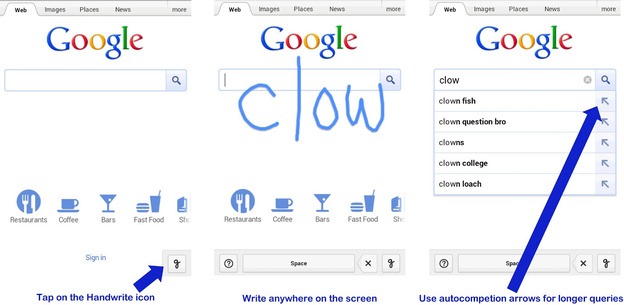
Well obviously every time its not convenient for you to enter your queries on your smartphone using than small keyboard, so now the whole Google's homepage is your canvas for writing down your queries and searching them easily on your smartphone or iPad.
How to Enable Google Search Handwriting Feature :
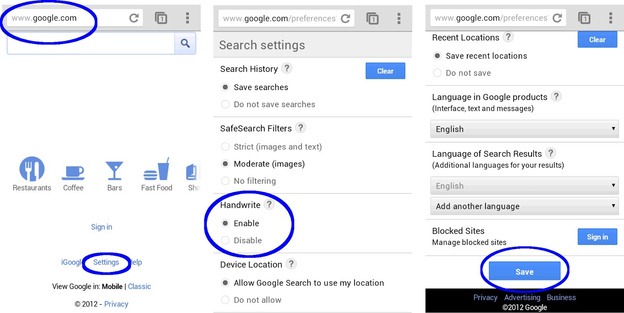
Well if you wanna start exploring this new feature you can simply turn it on by going toSettings > Handwrite > Enable and saving the settings out. Well now you have to make sure that you reload your homepage so that setting could take effect and now you are ready to scramble across Google's homepage. via - Googleblog
Google adds Scientific Calculator to their Search Engine
Earlier googling any mathematical expression results in your answer, but now google has made it more convenient for you to calculate on google with their very own created scientific calculator. This easy to use calculator has the ability to do everything from trigonometric to arithmetic calculations.

Well you are on a smartphone you can even use the voice feature for easy voice based
How to use Google Scientific Calculator :
"Calculator" or any mathematical expression into their search engine and you will have your visible calculator at your disposal.Google Fiber - A Revolution in Internet Connection by Google
Google Fiber as mentioned in the above title is going to be a revolution in internet connections provided these days. As claimed its going to be 100 times faster than the current broadband connection attaining speeds upto 1Gbs. As usual Google will start the migration process with a twist in Kansas City as starting point, the thing is that Google will apply their fiber network only on that place where a majority of persons are ready to go for this service.
More people you have in your society ready for Google Fiber, you will be chosen as the first place to get Fiber network. Google has claimed to provide free internet access fro upto 7 years but still you are required to pay $300 installation fees.
Normal tariff would be like $70/month for internet connection and $120/month fro internet and TV together. Now obviously with a speeds upto 1Gbs you are going to browsing will speeds of light, so imagine the world at that time no YouTube buffering, easy file transfer, online conferencing upto 100 people at one time and much more sky is the limit.
So now lets hope for the best from the search engine giant but if they are saying something they mean it, so what do you think about this Fiber network will you get this for your home and will Google reveal this product in India do comment your thoughts belowMonday, 20 February 2012
Awesome List of Google Tricks you would ♥ Checking Out
 As
Google is the best search engine its also one of the most hotspot for
occasional tricks and tweaks which we are going to discuss right below.
So these list of Google tricks will attract your attention and entertain
you and your friends. You must check all tricks listed below maybe you
know many of them as we have posted some in our earlier posts but some
are totally new to us.
As
Google is the best search engine its also one of the most hotspot for
occasional tricks and tweaks which we are going to discuss right below.
So these list of Google tricks will attract your attention and entertain
you and your friends. You must check all tricks listed below maybe you
know many of them as we have posted some in our earlier posts but some
are totally new to us.20 Awesome Google Tricks :
1. Type “let it snow” and click on I’m Feeling Lucky. (awesome snow effect)2. Type “google gravity” and click on I’m Feeling Lucky. (things start falling down)
3. Type “elggog” and click on I’m Feeling Lucky. (amazing mirror effect)
4. Type “do a barrel roll” and click on I’m Feeling Lucky. (a nice barrel roll attempted)
5. Type “who’s awesome” and click on I’m Feeling Lucky. (check it out yourself)
6. Type “tilt” and click on I’m Feeling Lucky. (webpage in 3D)
7. Type “who is the cutest” and click on I’m Feeling Lucky. (cute reviewed)
8. Type “google loco” and click on I’m Feeling Lucky. (someone starts moving)
9. Type “lol limewire” and click on I’m Feeling Lucky. (awesome picture)
10. Type “epic google” and click on I’m Feeling Lucky. (check it out yourself)
11. Type “rainbow google” and click on I’m Feeling Lucky. (check it out yourself)
12. Type “annoying google” and click on I’m Feeling Lucky. (check it out yourself)
13. Type “google pacman” and click on I’m Feeling Lucky. (check it out yourself)
14. Type “google heart page” and click on I’m Feeling Lucky. (check it out yourself)
15. Type “google magic” and click on I’m Feeling Lucky. (check it out yourself)
16. Type “google (color name)” and click on I’m Feeling Lucky. (check it out yourself)
17. Type “epic box” and click on I’m Feeling Lucky. (check it out yourself)
18. Type “sexy snape” and click on I’m Feeling Lucky. (check it out yourself)
19. Type “google sphere” and click on I’m Feeling Lucky. (check it out yourself)
20. Type “weenie google” and click on I’m Feeling Lucky. (check it out yourself)
So now pump these words into Google search and than click on I’m Feeling Lucky button and get amazed with awesome Google Tricks. Now you might get some problems as Google has updated their search page and now Instant search is on so make sure you turn that off by going to the Settings Gear icon and choosing Instant search off.
Saturday, 21 January 2012
How to download books from Google books for Free?
Here is the trick to download google book and read it off line also.
How to do this?
Step 1:
Download/install Greasemonkey addon(Customize the way a web page displays or behaves, by using small bits of JavaScript.) in Firefox
Install this userscript :google book download
Download/insall the Flashgot (FlashGot is the free add-on for Firefox and Thunderbird, meant to handle single and massive ("all" and "selection") downloads with several external Download Managers. )
Download/install Flashget(Download Manager)
Step 2:
View your favorite book.
For Example: http://books.google.com/books?id=Tmy8LAaVka8C&printsec=frontcover
In the left panel, click Download this book
Select all pages, right-click, choose FlashGot Selection
Press OK to start downloading. Note : Download only one page at a time, or your IP will be banned
After the downloading is finished, in FlashGet, left panel, choose Downloaded folder.
Select all pages of the book, right-click, choose Rename -> Comment As Filename
How to do this?
Step 1:
Download/install Greasemonkey addon(Customize the way a web page displays or behaves, by using small bits of JavaScript.) in Firefox
Install this userscript :google book download
Download/insall the Flashgot (FlashGot is the free add-on for Firefox and Thunderbird, meant to handle single and massive ("all" and "selection") downloads with several external Download Managers. )
Download/install Flashget(Download Manager)
Step 2:
View your favorite book.
For Example: http://books.google.com/books?id=Tmy8LAaVka8C&printsec=frontcover
In the left panel, click Download this book
Select all pages, right-click, choose FlashGot Selection
Press OK to start downloading. Note : Download only one page at a time, or your IP will be banned
After the downloading is finished, in FlashGet, left panel, choose Downloaded folder.
Select all pages of the book, right-click, choose Rename -> Comment As Filename
Subscribe to:
Posts (Atom)