Showing posts with label windows vista. Show all posts

Friday, 24 August 2012

Install Windows 8 Metro UI on Windows XP, Vista and 7


Omnimo 5.0 Windows 7
Omnimo 5.0 is basically a simple installable patcher which can bring the Metro UI of Windows 8 to your Windows XP, Vista and Windows 7 PC. Well those mosaic panels will be displayed and can be modified in shape and other structure. So with this tweak you will be able to read live news and display installed software's right on your front page.
So first you will need to install the Rainmeter and than you will install the Omnimo 5.0 software created by fediaFediaand Xyrfo, so download them from right hand side and start customizing your PC, well remember we have not tested this on our PC so we are not able to give you a live experience review so if you find any problems we are not responsible for that.

Friday, 9 March 2012

Create your Own Personalized Virus with JPS Virus Maker

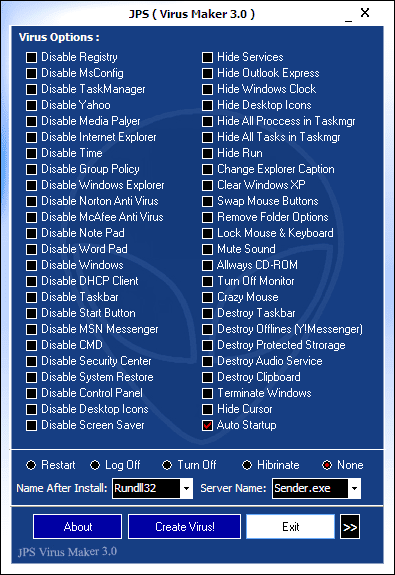
JPS Virus Maker 3.0 helps you in creating amazing personalized viruses which you can use on your friends to disable their normal hardware's which will annoy them and you can enjoy that awesome movement. Now this Virus Creating software can do many stuff features are listed below so you just mark what you wanna add in your virus and than click on Make Virus !

Features of JPS Virus Maker :

Disable Registry EditorJPS-Virus-Maker-3.0
Disable Ms Config
Disable Task Manager
Disable Yahoo! Messenger
Disable Media Player
Disable Internet Explorer
Disable Time
Disable Group Policy
Disable Windows Explorer
Disable Norton Antivirus
Disable McAfee Antivirus
Disable Note Pad
Disable Word Pad
Disable Windows
Disable DHCP Client Service
Disable Taskbar
Disable Start Button
Disable MSN Messenger
Disable Command Prompt
Disable Security Center
Disable MSN Messenger
Disable System Restore
Disable Control Panel
Disable Desktop Icons
Disable Screen Saver
Hide Service Manager
Hide Outlook Express
Hide Windows Clock
Hide Desktop Icons
Hide All Process in Task Manager
Hide All Tasks in Task Manager
Hide Run in Start Menu
Change Explorer Caption
Clear Windows XP Password
Swap Mouse Buttons
Remove Folder Options
Lock Mouse & Keyboards
Mute Sound
Crazy Mouse
Always CD-ROM Open
Turn Off Monitor (30 sec's)
Destroy Taskbar
Destroy Offline (Y!Messenger)
Destroy Protected Storage
Destroy Audio Service
Destroy Clipboard
Terminate Windows
Hide Cursor
Auto Startup
Restart-Logoff-Turnoff-Hibernate Automatic After 30 minutes
Change Server Name After Install in Process
Change Server Name

New Features in Version 3.0:

Change XP Password
Change Computer Name
Change IE Home Page
Close Custom Windows
Disable Custom Service
Disable Process
Open Custom Website
Run Custom Command
Enable Convert To Worm - Auto Copy Server To Active Path With Custom Name & Time
Change Custom Icon For Server (15 Icons)

Download JPS Virus Maker Software :

So if you liked the software, its features than you can download it using this Mediafire Link for free, it’s a .rar package so you will need WinRAR to open this file than you will get a .exe file run it and you will have this virus maker running.

Warning :

Well we scanned this file and we got some viruses in it so we are just sharing because some people needed it and requested us, but make sure before using it scan it properly and if you feel that its not good than do not use it, so stay safe and have fun :) with this amazing virus creating software.

Tuesday, 14 February 2012

Get Windows 7’s Task Switching Hotkeys In Vista & XP

As you may know, there are several new hotkeys available in Windows 7 to improve your productivity. In Windows 7, you can simply open or switch between any opened applications using Windows + 1-9 hotkeys.
vista taskbar
For example, Windows + 1 hotkey switchs to the fist window on the taskbar and Windows + 2 opens the second window on the taskbar. As this feature can improve your productivity dramatically, we have a small application that enables you get this feature in Windows XP and Vista too.

Activatebynum is a small utility for Windows XP and Vista that allows you switch between two windows easily using Windows + 1-9 keys.
tooltips
For a collapsed group of window buttons, repeatedly pressing the same Windows key + N combination (where “N” is the position of the group on the taskbar) will cycle through each window in the group. Windows key +- shows button numbers (>= 5) as tooltips.

Note that you will not be able to use Windows + 1-9 hotkeys to launch Quick Launch applications while Activatebynum is running.
Download Activatebynum (via Softpedia)

How To Get Windows 8 Ribbon UI In Windows 7, Vista And XP Explorer [Exact Ribbon UI Look]

Ribbon UI in Windows Explorer is one of the new features available in upcoming Windows 8 OS. The all new explorer Ribbon UI helps you quickly access explorer options with a mouse click. If you are still using the good old XP, Vista and Windows 7 and want to get the Windows 8 Ribbon UI in XP, Vista and Windows 7 as well, here is a nice way to get it.
Windows 8 Ribbon UI for Windows 7 Explorer
Ribbon UI for Windows 7
A deviantart member, PeterRollar, has created a Windows 8 7989 build Ribbon UI for Styler toolbar.  By installing Styler toolbar software and this ribbon UI skin, you can get the exact Windows 8 Explorer ribbon UI look in Windows 7 and Vista as well.

How to install and apply Ribbon UI in XP:
1. Start by downloading the Styler software from here.

2. Install the software and reboot your machine. If you are installing it on Windows 7, you need to run the program under compatibility mode. To do this, right-click on the installer, select Properties, switch to Compatibility tab and then enable Run this program in compatibility mode for option and select Previous versions of Windows option. Finally run the installer to complete the installation.

3. Open Explorer, Click View, Toolbars and enable the option named Styler Toolbar.

4. Now download Windows 8 Ribbon UI skin for Styler software from here. Extract the zip file and move “ribbon2” folder to Program Files\Styler\TB\Skins\Styler’s folder.

5. Go back to explorer, click on Floppy button, Skin, and select new Styler’s skin as Ribbon2 to enable the Ribbon UI in Windows XP explorer.

Please note that all the functions and tabs in the Ribbon UI may not work under Windows 7. If you know a working method to install and enable this skin in Windows 7 (x64), please let us know in comments so that we can update the post with mode details.

Please note that we haven’t tested this skin on Windows XP as we are on Windows 7. Hope it works!